
工程笔记
瀑布流 + 虚拟列表 实现博客画廊
本篇目录
瀑布流 + 虚拟列表 实现博客画廊
- github api
- jsdelivr
- heic2any
- 博客是 Private Repo,文章多为伪代码,仅供参考,源码可以掘金 imber 私信获取
github 图床 & jsdelivr CDN
首先要实现一个上传功能,上传到 github 图床,然后通过 jsdelivr CDN 加速展示到页面,这个展示的页面是公开的,但是上传的页面是私有链接,因为是个人展示专用。
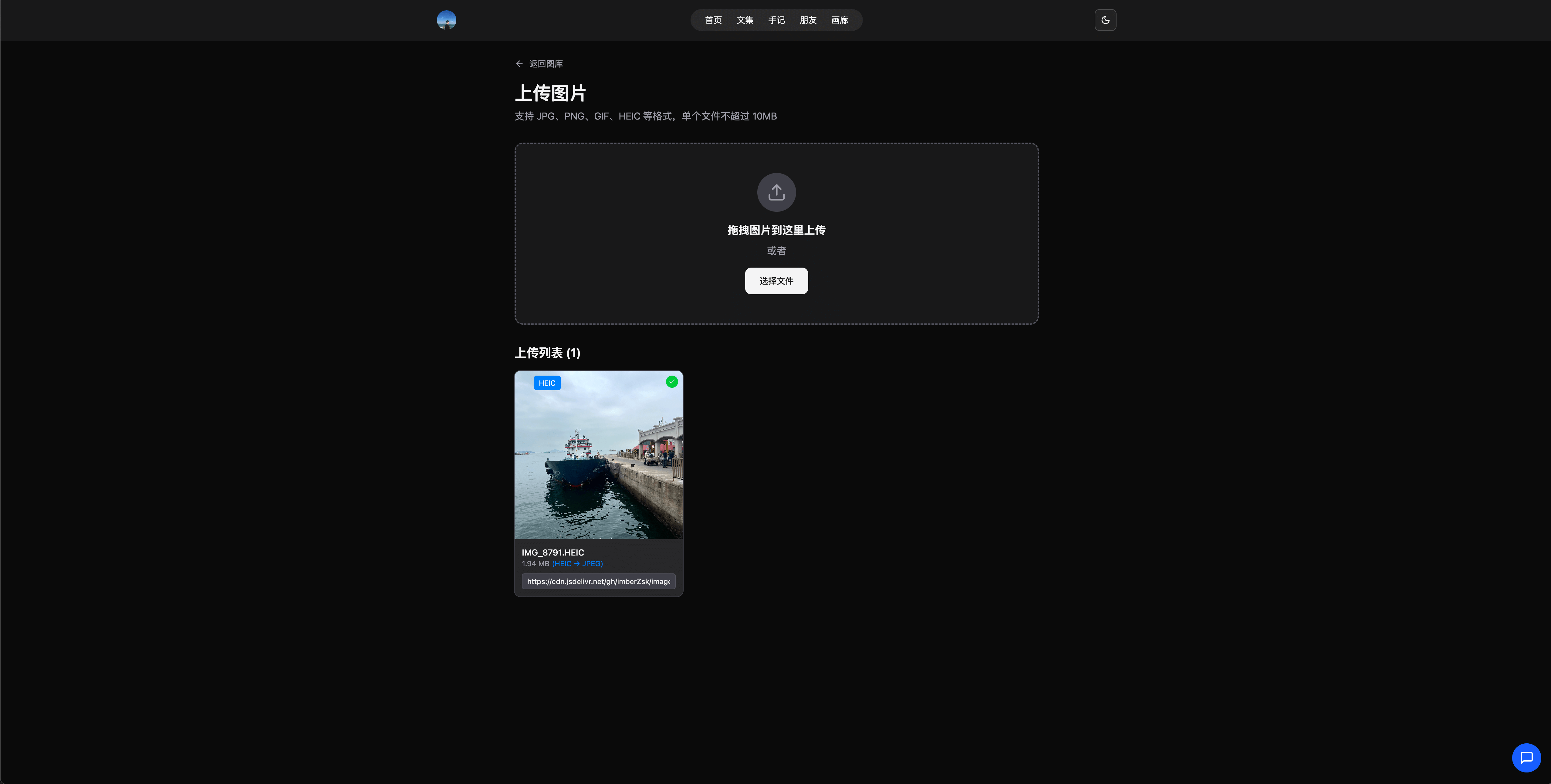
1、支持拖拽
- dragover 事件中的 e.preventDefault() 阻止默认行为,允许在该元素上drop
- drop 事件中的,浏览器默认会尝试导航到被拖拽文件,e.preventDefault() 防止页面跳转
const handleDragOver = useCallback((e: React.DragEvent) => {
  e.preventDefault()
  setIsDragging(true)
}, [])

const handleDragLeave = useCallback((e: React.DragEvent) => {
  e.preventDefault()// 不是必须的
  setIsDragging(false)
}, [])

const handleDrop = useCallback(
  (e: React.DragEvent) => {
    e.preventDefault()
    setIsDragging(false)
    handleFileSelect(e.dataTransfer.files) // 通用上传方法
  },
  [handleFileSelect]
)

<div className={cn()} onDragOver={handleDragOver} onDragLeave={handleDragLeave} onDrop={handleDrop}>
  <input
    ref={fileInputRef}
    type="file"
    multiple
    accept="image/*,.heic,.heif" // 可以不用单独指出heic
    onChange={(e) => handleFileSelect(e.target.files)}
  />
</div>
2、heic转换
图片很容易遇到 HEIC 格式(苹果手机拍摄,浏览器无法解析,无法渲染,无法触发 onload),所以需要一个转换工具,这里使用 heic2any 转换为 JPEG 格式。
// 转换 HEIC 文件为 JPEG
const convertHeicToJpeg = async (file: File): Promise<File> => {
  try {
    // 因为heic2any有window环境,无法直接使用,所以用动态引入或者用dynamic
    const convertedBlob = (await import('heic2any').then((module) =>
      module.default({
        blob: file,
        toType: 'image/jpeg',
        quality: 0.9
      })
    )) as Blob

    // 创建新的 File 对象
    const convertedFile = new File([convertedBlob], file.name.replace(/\.heic$/i, '.jpg').replace(/\.heif$/i, '.jpg'), {
      type: 'image/jpeg'
    })

    return convertedFile
  } catch (error) {
    console.error('HEIC 转换失败:', error)
    throw error
  }
}
3、上传进度
const handleFileSelect = useCallback(
  async (files: FileList | null) => {
    if (!files) return

    const validFiles = Array.from(files).filter(
      (file) => (file.type.startsWith('image/') || isHeicFile(file)) && file.size <= 10 * 1024 * 1024 // 10MB limit
    )

    if (validFiles.length === 0) return

    // 处理文件并创建预览
    const processedImages: UploadedImage[] = []

    for (const file of validFiles) {
      let previewUrl = ''
      let convertedFile: File | undefined

      if (isHeicFile(file)) {
        try {
          // 转换 HEIC 文件用于预览
          convertedFile = await convertHeicToJpeg(file)
          previewUrl = URL.createObjectURL(convertedFile)
        } catch (error) {
          console.error('HEIC 预览转换失败:', error)
          // 如果转换失败,使用原文件(虽然可能不显示)
          previewUrl = URL.createObjectURL(file)
        }
      } else {
        previewUrl = URL.createObjectURL(file)
      }

      processedImages.push({
        file,
        url: previewUrl,
        uploadStatus: 'uploading' as const,
        progress: 0,
        isHeic: isHeicFile(file),
        convertedFile
      })
    }

    setUploadedImages((prev) => [...prev, ...processedImages])

    // 上传每个文件
    for (let i = 0; i < processedImages.length; i++) {
      const imageIndex = uploadedImages.length + i

      try {
        // 模拟进度更新
        const progressInterval = setInterval(() => {
          setUploadedImages((prev) =>
            prev.map((img, idx) =>
              idx === imageIndex && img.progress < 90
                ? { ...img, progress: Math.min(img.progress + Math.random() * 20, 90) }
                : img
            )
          )
        }, 200)

        const cdnUrl = await uploadImageToGitHub(processedImages[i].file)

        clearInterval(progressInterval)

        setUploadedImages((prev) =>
          prev.map((img, idx) =>
            idx === imageIndex
              ? {
                  ...img,
                  cdnUrl: cdnUrl || undefined,
                  uploadStatus: cdnUrl ? 'success' : 'error',
                  progress: 100
                }
              : img
          )
        )
      } catch {
        setUploadedImages((prev) =>
          prev.map((img, idx) => (idx === imageIndex ? { ...img, uploadStatus: 'error' as const, progress: 0 } : img))
        )
      }
    }
  },
  [uploadedImages.length, uploadImageToGitHub]
)
4、上传逻辑
const uploadImageToGitHub = useCallback(async (file: File): Promise<string | null> => {
  // 如果是 HEIC 文件,先转换为 JPEG
  let fileToUpload = file
  if (isHeicFile(file)) {
    try {
      fileToUpload = await convertHeicToJpeg(file)
    } catch (error) {
      console.error('HEIC 转换失败:', error)
      return null
    }
  }

  if (typeof window !== 'undefined') {
    const img = new window.Image()
    const url = URL.createObjectURL(fileToUpload)

    img.src = url

    await new Promise((resolve) => {
      img.onload = () => {
        resolve(true)
      }
      // 添加错误处理
      img.onerror = () => {
        console.error('图片加载失败')
        resolve(false)
      }
    })

    // 这里我需要图片的宽高用于前台展示
    const path = `gallery/${Date.now()}-${img.naturalWidth}x${img.naturalHeight}-${fileToUpload.name}`

    // 释放内存
    URL.revokeObjectURL(url)

    // 将文件转换为 base64
    const reader = new FileReader()

    // github 需要base64上传
    const base64Content = await new Promise<string>((resolve) => {
      reader.onload = (e) => {
        const base64 = (e.target?.result as string)?.split(',')[1]
        resolve(base64)
      }
      reader.readAsDataURL(fileToUpload)
    })

    const { error } = await uploadImageToGitHubApi(fileToUpload, path, base64Content)

    // 使用 jsDelivr CDN URL
    const cdnUrl = `https://cdn.jsdelivr.net/gh/${GITHUB_CONFIG.owner}/${GITHUB_CONFIG.repo}/${path}`

    if (error) {
      console.error(error)
      return null
    }

    return cdnUrl
  }

  return null
}, [])
5、github 接口
import { gitHubService } from '@/services'
import { GITHUB_CONFIG } from './const'

export const uploadImageToGitHubApi = async (file: File, path: string, base64Content: string) => {
  // baseUrl 是 https://api.github.com
  const { data, error } = await gitHubService.put(
    `/repos/${GITHUB_CONFIG.owner}/${GITHUB_CONFIG.repo}/contents/${path}`,
    {
      message: `Upload product image: ${file.name}`,
      content: base64Content
    },
    {
      headers: {
        Authorization: `Bearer ${GITHUB_CONFIG.token}`
      }
    }
  )

  return { data, error }
}
瀑布流

前提是需要提供图片视频的宽高,根据宽度和宽高比,可以计算出 item 元素的显示宽高;核心逻辑是计算出根据最小宽度、间隙、容器宽度,计算出列数和 itemWidth,根据列数初始化一个数组用于存每一列的高度,在遍历的时候,累加这个高度,计算元素的 left 偏移值 = 最小列数的索引 * itemWidth + 最小列数的索引 * gap;计算 top 偏移值 = 数组中最小列数的高度;
const gap = 20 // 间隙
const minWidth = 300 // 最小宽度

const [positions, setPositions] = useState<{ top: number; left: number; width: number; height: number }[]>([])
const [containerHeight, setContainerHeight] = useState(0)

useEffect(() => {
  const getPositions = () => {
    // 容器的宽度
    const containerWidth = document.querySelector('.waterfall-container')?.clientWidth

    if (!containerWidth) return

    // 1. 计算理论列数
    let columns = Math.floor(containerWidth / minWidth)

    // 2. 计算理论宽度
    let itemWidth = (containerWidth - (columns - 1) * gap) / columns

    // 3. 如果宽度小于最小值,减少列数
    while (itemWidth < minWidth && columns > 1) {
      columns--
      itemWidth = (containerWidth - (columns - 1) * gap) / columns
    }

    // 4. 初始化列高度数组
    const columnsArr = Array(columns).fill(0)
    const newPositions: { top: number; left: number; width: number; height: number }[] = []

    // 5. 计算每个图片的位置
    data.forEach((file) => {
      const fileName = getImageCDNUrl(file)

      // 获取宽高比
      const aspectRatio = getAspectRatio(fileName)

      // 计算高度
      const height = Math.floor(itemWidth * aspectRatio)

      // 找到最短的列
      const minIndex = columnsArr.indexOf(Math.min(...columnsArr))
      const top = columnsArr[minIndex]
      const left = minIndex * itemWidth + minIndex * gap

      // 添加位置信息
      newPositions.push({ top, left, width: itemWidth, height })

      // 更新该列的高度
      columnsArr[minIndex] = top + height + gap
    })

    // 6. 一次性设置所有位置
    setPositions(newPositions)
    setContainerHeight(Math.max(...columnsArr))
  }

  // 延迟执行确保DOM已渲染
  const timer = setTimeout(getPositions, 500)

  // 监听窗口大小变化
  const handleResize = () => {
    getPositions()
  }

  window.addEventListener('resize', handleResize)

  return () => {
    clearTimeout(timer)
    window.removeEventListener('resize', handleResize)
  }
}, [data, gap, minWidth])
对于 CLS 优化,可以使用 {positions.length !== data.length && <Loading />} 来保证每个元素的宽高都计算完成后再渲染,避免出现闪烁。
虚拟列表
虚拟列表有两种,一种是定高,一种是不定高。对于定高来说比较简单,核心逻辑是计算 starIndex 和 endIndex,然后根据这两个值给数据 slice。计算 starIndex 的时候通过 scrollTop 和 itemHeight 计算出,(endIndex 根据 containerHeight 和 itemHeight) + starIndex 计算出。
对于不定高,也就是瀑布流需要采取的方案,核心逻辑也是计算 startIndex 和 endIndex,然后设置 buffer = 5 缓冲区避免滚动快的时候白屏过多;计算 startIndex 遍历数组,如果当前元素的 top 加上高度大于 scrollTop,则返回当前索引;计算 endIndex 遍历数组,如果当前元素的 top 大于 scrollTop + viewportHeight(可见区域底部),则返回当前索引。
// 缓冲区
const buffer = 5

// 虚拟列表获取开始的索引
const getStartIndex = (scrollTop: number, newPositions: Position[]) => {
  for (let i = 0; i < newPositions.length; i++) {
    // 如果当前元素的 top 加上高度大于 scrollTop,则返回当前索引
    if (newPositions[i].top + newPositions[i].height > scrollTop) {
      return i
    }
  }
  return 0
}

// 虚拟列表获取结束的索引
const getEndIndex = (scrollTop: number, viewportHeight: number, newPositions: Position[]) => {
  // 可见区域底部
  const visibleBottom = scrollTop + viewportHeight
  // 遍历每个元素,如果当前元素的 top 大于可见区域底部,则返回当前索引
  for (let i = 0; i < newPositions.length; i++) {
    if (newPositions[i].top > visibleBottom) {
      return i
    }
  }
  return newPositions.length - 1
}

const Waterfall = ({ data }: { data: GitHubFile[] }) => {
  const [scrollTop, setScrollTop] = useState(0)
  const [startIndex, setStartIndex] = useState(0)
  const [endIndex, setEndIndex] = useState(0)

  // 滚动事件
  const onScroll = useCallback(() => {
    setScrollTop(window.scrollY)
  }, [])

  // 监听全局滚动
  useEffect(() => {
    window.addEventListener('scroll', onScroll)
    return () => window.removeEventListener('scroll', onScroll)
  }, [onScroll])

  // 独立的 useEffect 处理滚动时的虚拟列表计算
  useEffect(() => {
    if (positions.length === 0) return

    const viewportHeight = window.innerHeight

    const start = Math.max(0, getStartIndex(scrollTop, positions) - buffer)
    const end = Math.min(positions.length - 1, getEndIndex(scrollTop, viewportHeight, positions) + buffer)

    setStartIndex(start)
    setEndIndex(end)
  }, [scrollTop, positions])

  return (
    <div className="waterfall-container relative mx-auto w-full max-w-[1920px]">
      {/* 撑开滚动条的容器 */}
      <div className="relative w-full" style={{ height: `${containerHeight}px` }}>
        {positions.length !== data.length && <Loading />}

        {positions.length === data.length &&
          Array.from({ length: endIndex - startIndex + 1 }, (_, i) => {
            const realIndex = startIndex + i
            const file = data[realIndex]
            const fileName = getImageCDNUrl(file)

            return (
              <div
                key={realIndex}
                style={{
                  top: `${positions[realIndex].top}px`,
                  left: `${positions[realIndex].left}px`,
                  width: `${positions[realIndex].width}px`,
                  height: `${positions[realIndex].height}px`
                }}
              ></div>
            )
          })}
      </div>
    </div>
  )
}